
Author: SEOScanPRO

  • How to Build an AI SEO Agent for Keyword Research and Content Briefs

    How to Build an AI SEO Agent for Keyword Research and Content Briefs

    An AI SEO agent can take the content brief workflow defined in this guide, run it on demand, and keep producing consistent output long after setup. The gain from building it well is turning keyword clustering and content brief creation into a process that runs whenever it is needed, pulling verified Google Search Console and keyword data through a human review step.

    This guide walks through the full setup, from scoping the first workflow to deploying the finished agent. It focuses on a content brief agent that takes a seed keyword, checks it against existing Google Search Console data, performs keyword research through a connected data source, groups the results into topic clusters, and outputs a content brief for the chosen topic.

    What is an AI SEO agent?

    An AI SEO agent is a fully or partly automatic workflow built into an AI tool to carry out a specific process. Agents do not need to be fully autonomous. Better and more consistent results tend to come from workflows where human approval is part of the design. If the agent finds internal linking opportunities, for example, a human should still implement the links. Even with careful setup, AI agents can still produce errors that range from minor to costly, depending on the task.

    What can AI SEO agents actually do?

    SEO agents can automate a wide range of important tasks, including:

    • Keyword research
    • Competitor analysis
    • Link building outreach
    • Keyword clustering
    • Content decay detection
    • Identifying content refresh opportunities
    • Technical audits
    • Internal linking at scale
    • Performance reporting

    These tasks usually need external tools, which can be connected through an API or a Model Context Protocol (MCP) connection. MCP is a way for AI tools to communicate with data providers. For instance, Semrush SEO subscriptions and SEO + AI subscriptions include 50K MCP API units per month. Connecting the Semrush MCP to an AI tool gives the agent access to data sources such as keyword and backlink databases.

    When is an agent the wrong tool?

    An agent is usually the wrong choice for:

    • One-off tasks: A single prompt in ChatGPT or a similar AI tool skips the cost and setup of building an agent.
    • Work that needs editorial judgment or brand risk assessment often requires human review or escalation, which can make an agent less cost-effective than a workflow that ends in direct human review.
    • Workflows that change every run: Editing instructions each run erodes the value of setting up an agent in the first place.

    How to build an AI SEO agent of your own

    The same step-by-step process for building a content brief agent also applies to most SEO use cases.

    Step 1: Choose one clearly defined workflow

    Pick one clearly defined, repeatable SEO task for the first agent. Complex agents are possible, but the first build should stay narrow. Too many potential failure points mean more time fixing things than getting results. API units cost real money, so a badly scoped agent can spend a budget quickly during trial and error.

    A good first workflow has a defined input (a seed keyword), a defined output (an optimization opportunity), and a success metric you can validate by checking it against existing Google Search Console data.

    • Takes a seed keyword as input
    • Checks the seed keyword against existing Google Search Console data to spot optimization opportunities for current pages
    • Performs keyword research through the Semrush MCP and groups the results into distinct topic clusters
    • Creates a content brief for a user-chosen topic based on SERP analysis and Semrush data

    Each run produces one output after a few steps.

    Step 2: Document the existing human process

    Write down the current human process so the agent’s behavior matches how an experienced SEO professional would ideally perform the task. Documentation should include:

    • Any data sources used
    • Rules or filters applied
    • Any exceptions accounted for

    This document becomes the agent’s operating instructions later.

    Step 3: Choose your inputs and outputs

    The example content brief agent has three stages, each with its own inputs and outputs:

    • Stage 1 (one-time setup): The user inputs a business context file, Google Search Console data, and a list of existing URLs. The agent outputs a CSV of clustered queries from GSC for use on each future run.
    • Stage 2 (keyword research): The user inputs a seed keyword or topic. The agent outputs a CSV of topics clustered around the input.
    • Stage 3 (content brief): The user inputs a chosen topic from stage 2. The agent outputs a content brief for that topic.

    Specifying file types helps here. The example brief is saved as a .docx file, but markdown, PDF, or Google Docs are equally valid with the right connection.

    Step 4: Connect verified data sources

    Verified data keeps the agent from producing fabricated metrics or made-up data points. Relevant sources include:

    • The Semrush API or MCP
    • Google Search Console
    • Google Analytics
    • The content management system
    • Manually created sources, like lists of URLs or target keywords

    Always confirm permission to connect a source before adding it, since some AI tools may use uploaded inputs for training.

    For the example agent, the Semrush MCP is connected to power keyword research. In Claude, click the plus icon on any chat window, then go to Connectors, Add connector, Browse connectors, search for Semrush, and click the plus button to connect through MCP. Complete the sign-in flow to finish.

    Uploading a CSV of Google Search Console data is a manual step, but it is quick and only needs to be repeated monthly to keep the data current. A list of existing URLs is also uploaded so the agent can suggest internal linking opportunities inside the content brief.

    Step 5: Turn your human process document into agent instructions

    Paste the documented human process into the AI tool and ask it to turn the document into agent instructions. Tools like Claude and ChatGPT tend to handle this conversion well. Include a summary of the expected inputs and outputs alongside the document, and clarify which tools the agent should use and when, which helps control token and API unit use.

    Ask the tool if it understands everything and whether anything else is needed. The first pass will not be perfect, and a few rounds of back-and-forth are normal. Different models may also give different results worth testing. Edit the output into a final set of instructions, which gets uploaded as a skill file (a reusable set of custom instructions) in the next step.

    Connecting the agent to communication or project management tools like Monday.com or Slack lets it deliver reports or create tasks automatically. High-impact actions, including publishing, redirects, or code deployments, should stay behind a human approval step.

    Step 6: Add your skill to the AI platform

    Adding the instructions as a skill file creates a repeatable, callable workflow inside the platform that can be referenced whenever it is needed. In Claude, click Customize in the left-hand sidebar, then Add and Create a skill. Give the skill a name using lowercase letters, numbers, and hyphens. Add a description, paste the agent instructions into the free text box, and click Create.

    Step 7: Add relevant files to the skill

    Include a business context file containing details such as best-selling products, highest-traffic posts, target audience, brand voice, and competitor positioning so the agent can tailor its output to the specific business.

    • What the business sells, including product or service features
    • Who the business sells to, covering both primary and secondary audiences
    • Main competitors
    • Important pages on the website, such as best-selling products or highest-traffic posts
    • Any rules or filters the AI should respect

    For the content brief agent, this context shapes which keywords the agent focuses on. It can, for example, prioritize keywords related to upcoming product launches. In Claude, click Add file within the skill editor, name the file, paste the business context, and click Create.

    Step 8: Test and tweak your agentic workflow

    Upload dummy data sources and monitor the agent’s output. For the example agent, a Google Search Console CSV and a list of existing URLs are uploaded, then a prompt is used that calls the content brief skill and specifies a seed keyword for the test, such as “AI tools for freelancers.”

    Watch the reasoning and evidence the AI gives for its decisions and outputs. This is where issues surface and where the cause becomes clear. Requiring the agent to provide sources for its keyword and heading suggestions during the live workflow helps the human reviewer quickly judge each recommendation. A suggested heading may come from a competitor’s page, for example, or from a Semrush data point showing strong search volume.

    Running multiple tests with different seed keywords confirms the output is reliable across content types, including listicles and comprehensive guides. The agent should produce the topic cluster CSV as expected, then a content brief for the chosen topic. With URLs uploaded, the brief should include internal linking opportunities, and the notes for the writer section can reference upcoming products from the business context file.

    Step 9: Deploy, monitor, and improve

    After multiple successful tests, the agent can go into immediate use or be deployed to a wider team. Recording a walkthrough, either as a short video or a document with screenshots showing exactly what was prompted, helps other stakeholders approve the workflow and helps other team members use it correctly.

    The agent can be adapted over time. Navigate to the skill file, click the three-dot menu, and select Edit. Make changes, then rerun the testing step. Be mindful of who has access, since many users running the agent across a wide range of models can quickly spend both Claude tokens and Semrush API units.

    What to watch once the agent is live

    A few habits keep the agent useful over time:

    • Refresh the Google Search Console export on a monthly schedule so the agent’s optimization suggestions stay current.
    • Keep high-impact actions, including publishing, redirects, and code deployments, behind human approval.
    • Track API unit usage and token use, especially when access is shared across a team.
    • Update the business context file whenever products, audiences, or competitors shift.

    FAQ

    What is an AI SEO agent?

    An AI SEO agent is a workflow built into an AI tool that carries out a specific SEO process, either fully or with human approval at key steps to catch errors before they spread.

    What tasks can AI SEO agents automate?

    AI SEO agents can automate keyword research, competitor analysis, link building outreach, keyword clustering, content decay detection, content refresh identification, technical audits, internal linking at scale, and performance reporting. These tasks usually require connecting external tools through an API or an MCP connection.

    When is an AI SEO agent the wrong tool?

    An AI SEO agent is usually the wrong tool for one-off tasks, work that requires editorial judgment or brand risk assessment, and workflows that change every time they run. A single AI prompt is typically cheaper and faster for a one-off, and the oversight needed for judgment-heavy work makes an agent less cost-effective.

    Try the Search Console analytics view
    SEOScanPro, which includes the Search Console analytics view

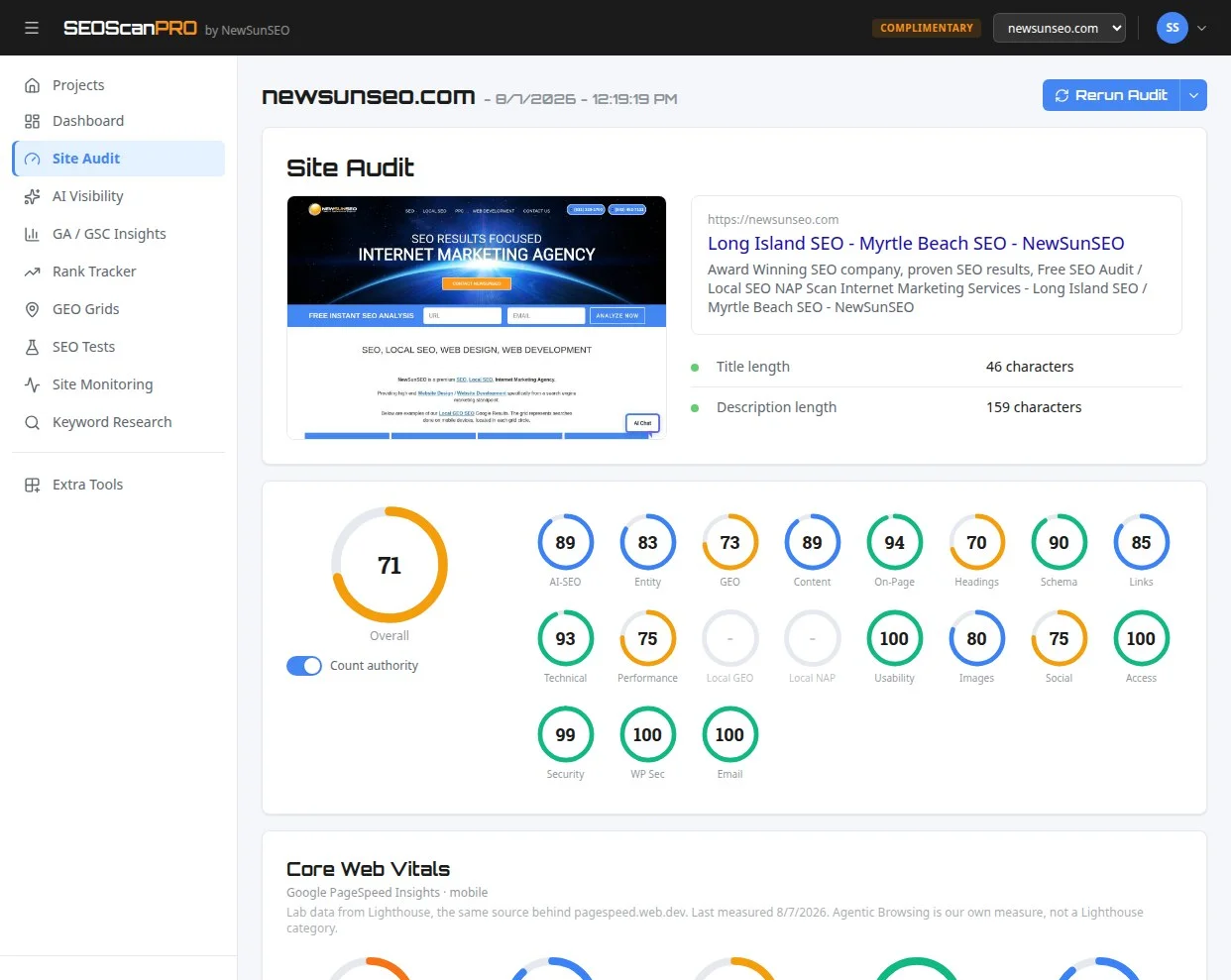
    SEOScanPro runs a full technical audit of a site and shows the measured result behind every check. Open the Search Console analytics view.

  • Google AI Overviews Testing Citation Cards At The Bottom On Desktop

    Google AI Overviews Testing Citation Cards At The Bottom On Desktop

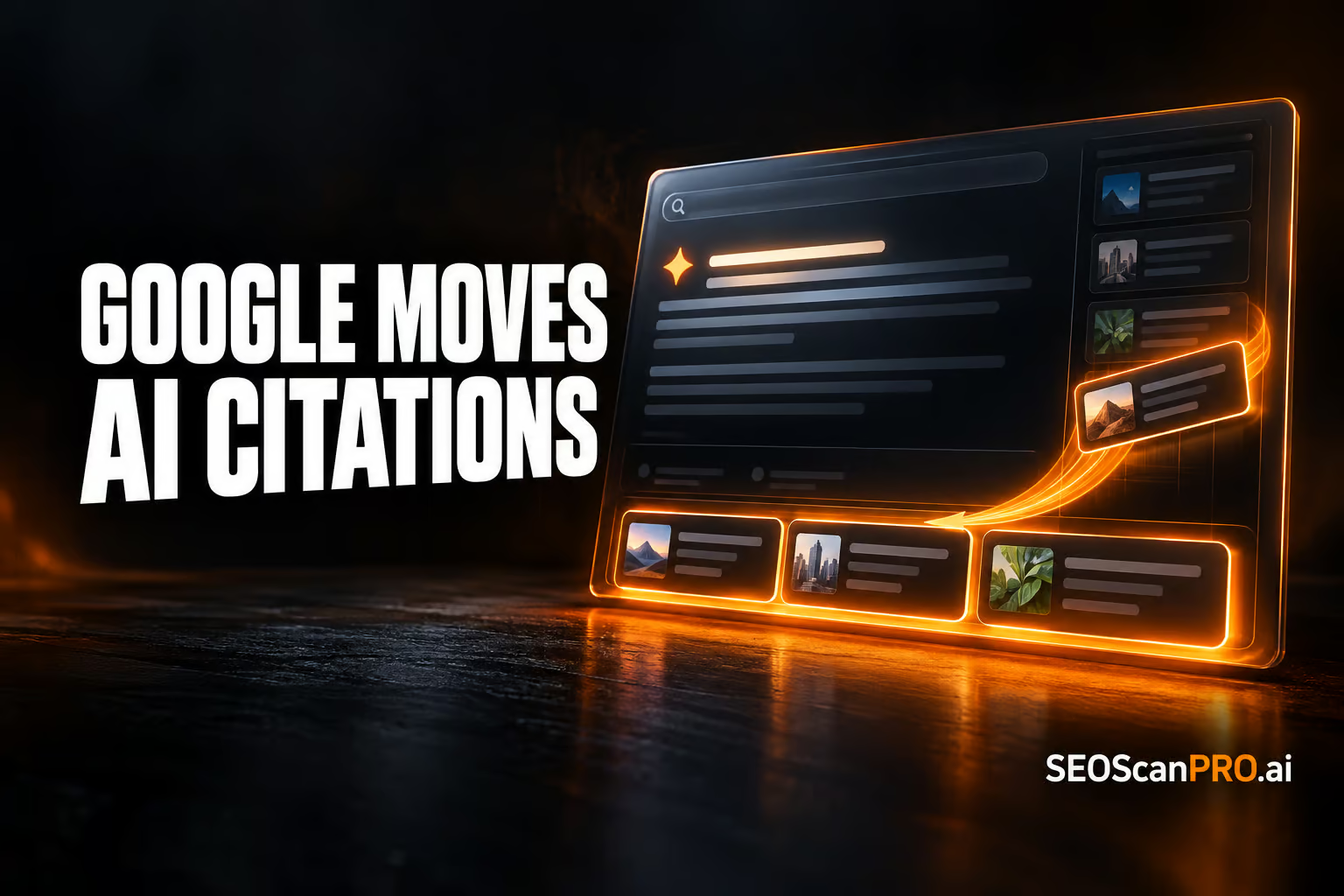
    Google is experimenting with moving AI Overview citations from the right rail to a new card stack at the bottom of the desktop result. The shift, spotted during a live test, removes the side panel and gives the inline answer cleaner margins while reserving a dedicated block beneath the response for sources. Readers who want to check a fact no longer have to glance sideways; the supporting links sit right under the generated answer, where the next click feels closer to the content above it.

    What changed in the layout

    The current test shows citation cards stacked beneath the AI Overview on desktop, rather than running down the right side of the answer. The right-hand citation area has been deleted from this view. A “show more” control then expands a full list of citation links at the bottom of the response.

    Inline links inside the answer still behave as before: hovering surfaces a preview, and clicking jumps through. The visual difference is the secondary citation surface, which moves from the right edge to a block under the answer. That block can then be displayed fully to reveal more citation links.

    How the bottom layout looks next to the right-side design

    Side-by-side comparisons show the difference. In the existing design, citation cards sit in a vertical strip on the right of the AI Overview. With the strip removed in the new test, those cards move to a stacked block beneath the response, leaving the inline answer in clean margins.

    The earlier side-by-side view:

    • Citation cards: a vertical strip on the right of the AI Overview.
    • Expand step: one click on “show more” widens the side panel to show more citation links.

    The new bottom test:

    • Citation cards: a stacked block beneath the response, with the right rail removed.
    • Expand step: a “show more” control surfaces a fuller list of citation links at the bottom.

    Why this test is worth watching

    This is the third time a bottom-stacked citation layout has surfaced. It ran in September of 2025, then again in March of 2026, and now in late September 2026. Each pass refines the design. This new one is a nicer variation of the earlier tests.

    One practical detail affects how visible the citations are. If the user never clicks “show more”, the bottom area could look empty, leaving only the small link icons embedded in the AI response. Google can also expand the bottom block automatically, in which case the citations appear right away. The default state of the expand control is therefore a key design choice in this round.

    What it could mean for sites cited in AI Overviews

    The citation block’s position changes which links readers notice. Cards placed below the answer appear nearer to the user’s next scroll position and can be mistaken for part of the response. The inline links keep their hover behavior, but the larger citation area beneath the answer could draw more attention. For any site that gets cited by AI Overviews, the move is worth tracking because click-through to sources depends on how visible and tempting the citation surface feels next to the generated text.

    How to track when citation engines actually appear on your pages

    Tools that map how a page shows up inside AI answers are useful for catching layout changes like this. AI visibility tracking reports whether a domain is cited by AI engines and which queries surface it. Rank position across a service area is what a geo grid report shows, and SEOScanPro‘s GEO Grids do this.

    FAQ

    Where are citations appearing in the new Google AI Overview test?

    Citations are appearing as a stacked block at the bottom of the AI Overview on desktop, with the right-side citation bar removed. A “show more” control expands the block to display more citation links.

    How many times has Google tested bottom citations in AI Overviews?

    At least three times. Bottom-stacked citations were tested in September 2025, then again in March 2026, and the latest test was spotted in late September 2026.

    Do the inline links still work in the bottom-citation layout?

    Yes. Inline links inside the AI Overview still support hover and click as in the standard layout. The new test only relocates the secondary citation cards; it does not change how the inline links behave.

    Try the AI visibility report

    SEOScanPro, which includes the AI visibility report

    SEOScanPro runs a full technical audit of a site and shows the measured result behind every check. Open the AI visibility report.


  • Google: Old Position 1-10 Ranking Is Hard To Map For Site Owners

    Google: Old Position 1-10 Ranking Is Hard To Map For Site Owners

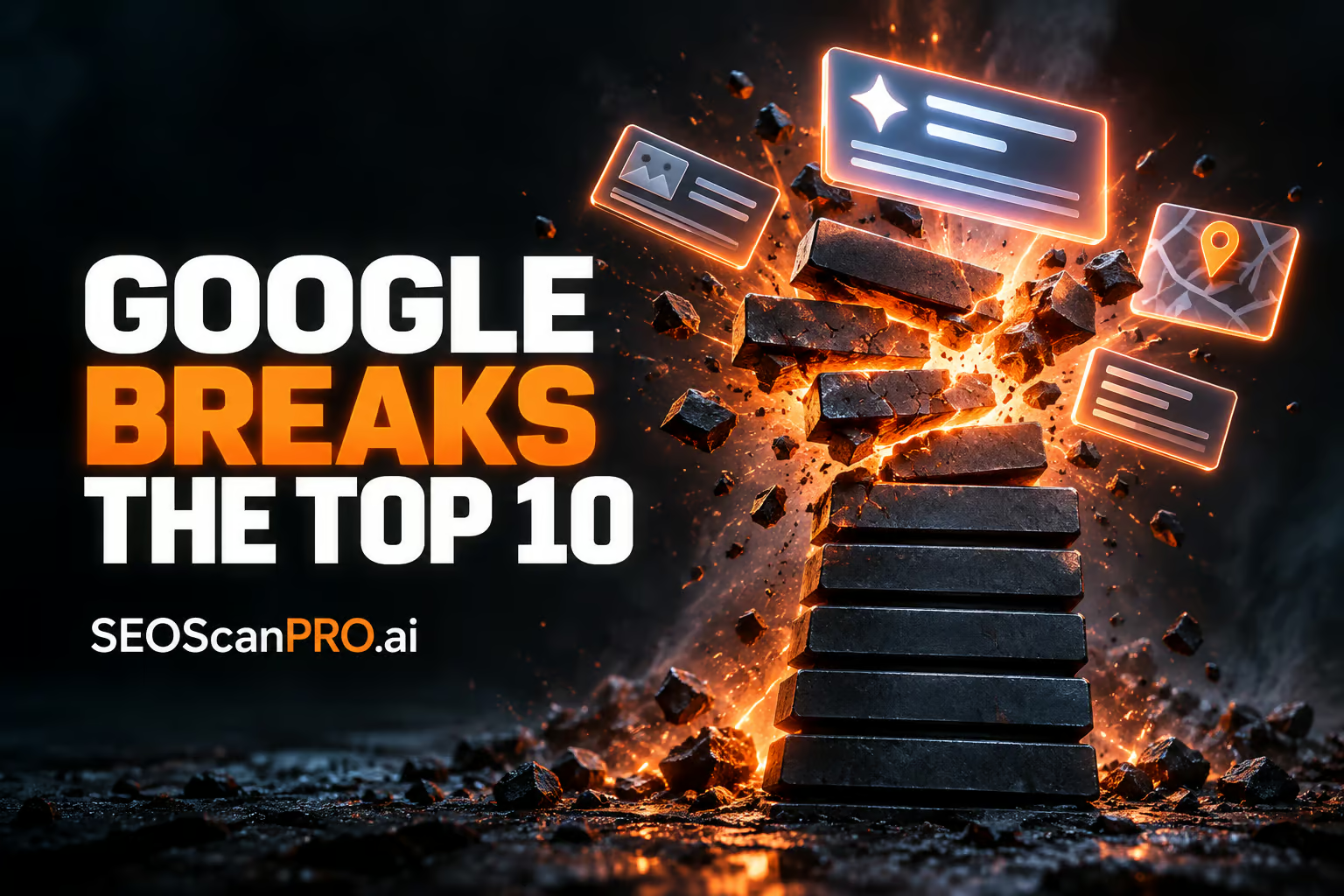
    Site owners can now see a clearer picture of where their pages actually land in modern Google results. A Google representative recently explained that the traditional “position 1 to 10” ranking metric is hard to map because today’s search results pages contain many interactive elements, including AI Overviews, featured snippets, and People Also Ask boxes, making a single numeric position less meaningful.

    Why a single rank position no longer fits the modern SERP

    The classic top-10 list assumed a page of ten blue links. Modern Google results pages look very different. AI Overviews sit at the top with multiple citations, featured snippets pull content above the organic links, and People Also Ask boxes, image packs, and other treatments fill the page. A site can be visible on the same results page in several places at once, and a single “position” no longer captures that.

    In a Reddit thread, a Google search relations representative responded to questions about how impressions are counted for Generative AI in Google Search Console. Google already publishes a help document explaining how these impressions are tallied, and the representative pointed readers to it. What was new was the added comment: the old “position 1 to 10” is hard to map, or to make useful for site owners.

    How Google Search Console currently handles position for Gen-AI results

    For generative AI results specifically, Google treats position tracking the way it tracks many other search features, as a unit rather than a number. The Generative AI performance report does not separate position out the way the standard search report does. The reasoning is that a numbered slot does not reflect how users actually encounter these results.

    A representative asked the community for feedback on what would be useful for tracking position in this environment and offered to take suggestions back to the team.

    What this means for measuring search performance

    The practical takeaway for site owners is that average position is becoming a weaker proxy for visibility. A page can show up in an AI Overview citation, a featured snippet, and the regular organic results on the same query, and each of those placements reaches users in a different way. Reporting that rolls those placements up into a single average number loses that detail.

    Anyone auditing a site now has more reason to look beyond position and toward impressions, click-through rate, and the specific SERP features where a page appears. Tools that map rank across a whole service area, rather than a single average, can show where a business is visible and where it is missing. SEOScanPro’s GEO Grids (https://seoscanpro.ai) do this by reporting rank position for every town and suburb in a service area rather than one city-wide average.

    What to watch next

    Google has not committed to a replacement metric. For now, the Generative AI performance report continues to treat AI placements as a block rather than numbered slots. If Google changes how it reports position for these features, that will show up in the Search Console help documentation first. Site owners who want early signal on how their pages appear in AI-driven results should keep an eye on that documentation and on the Reddit threads where Google’s search relations team has been asking for feedback.

    FAQ

    Why does Google say position 1-10 is hard to map?

    Modern Google search results pages include AI Overviews, featured snippets, People Also Ask boxes, and other interactive features, so a site can appear in multiple places on the same page. A single number from 1 to 10 cannot capture that, which is why Google says the old position scale is hard to make useful for site owners.

    How does Google Search Console track position for AI Overviews?

    For generative AI results, Google Search Console tracks position the way it tracks many search features: as a block. The Generative AI performance report does not break position out into separate numbered slots.

    What should site owners track instead of average position?

    Site owners get more useful signal from impressions, click-through rate, and the specific SERP features where a page appears, such as AI Overview citations or featured snippets, than from a single average position number.

    Try the Search Console analytics view

    SEOScanPro, which includes the Search Console analytics view

    SEOScanPro runs a full technical audit of a site and shows the measured result behind every check. Open the Search Console analytics view.
  • Google Tests URL Tracking Parameters in AI Overviews and AI Mode

    Google Tests URL Tracking Parameters in AI Overviews and AI Mode

    More clarity over which clicks arrive from AI Overviews in Google Search is on the way if a new test rolls out fully. Links surfaced inside AI Overviews and AI Mode are showing up with an appended tracking parameter that would separate AI-driven visits from standard organic clicks, giving site owners a way to read AI referral traffic directly in their analytics.

    What was spotted on the links

    The appended string is a query parameter, written as ?st_source=ai_overview, added to the end of URLs that appear within Google’s AI Overviews and AI Mode responses.

    The purpose, as described in the original report, is to function as an attribution marker. By stamping every AI Overview and AI Mode link with a recognizable tag, a publisher can filter analytics for that parameter and isolate the traffic arriving from Google’s generative surfaces, rather than mixing it in with regular web results.

    What it looks like in practice

    A link that would normally resolve to a destination article, for example https://example.com/article, would instead resolve to something like https://example.com/article?st_source=ai_overview when reached through an AI-driven result. The same pattern was reported inside AI Mode, where the generative answer links to outside sources.

    Screenshots from the person who first noticed the change showed the tag in several different result layouts, not just the inline citations inside an AI Overview. The parameter appeared even in the “links mentioned in the source” list, which is the secondary reference block AI Mode displays beneath its answer.

    Could this be replicated?

    Attempts to reproduce the same behavior across several browsers did not surface the parameter on identical queries. The discrepancy suggests the test is limited to specific users, sessions, or regions, which is a common pattern for Google’s search experiments. Google’s standard practice is to A/B test new link structures against a slice of traffic before deciding on a full launch, so a partial rollout is consistent with normal product experimentation.

    What this means for site owners and analytics

    If the parameter ships broadly, the practical benefit is a clean line in analytics between a click that originated inside an AI Overview and one that originated in the traditional blue-link results. Right now, those visits are difficult to separate because both arrive as Google Search referrals and look the same in log-level data.

    With a stable parameter, a publisher can build a segment in Google Analytics, a filter in a server log, or a dedicated dashboard tile for st_source=ai_overview. That makes it possible to track click-through rate, conversion behavior, and revenue specifically tied to Google’s AI surfaces, rather than estimating the share of traffic that comes from AI Overviews through indirect inference.

    It also gives SEO teams a direct measurement of how visible a site is inside AI Overviews, which has become a meaningful secondary visibility signal alongside classic organic ranking. Knowing the click count, the query distribution, and the landing pages that AI citations send traffic to would let a site tune content for the prompts that AI Overviews answers most frequently in its niche.

    AI visibility tracking tools that monitor citation frequency in generative results are a related way to keep tabs on this, and a website audit can reveal whether the analytics setup is configured to capture these parameters when they ship.

    Why Google would add it

    Attribution inside AI results is a known gap for both Google and the publishers it cites. Without a tag on the link, an AI Overview click looks identical to any other referrer from the same domain, and there is no built-in way to count those visits. A parameter solves that without changing the visible layout of the AI Overview or the way the link itself is rendered to the user.

    For publishers, that clarity turns into a planning input: which topics are pulling citations in AI Overviews, which pages are receiving the resulting clicks, and how that traffic compares to the impressions already visible in Google Search Console. None of that is possible to read today without manual tagging or third-party estimation.

    FAQ

    What is the ?st_source=ai_overview parameter?

    It is a query parameter appended to the end of URLs that appear inside Google’s AI Overviews and AI Mode answers. The marker would let a publisher identify clicks that originated from Google’s AI-driven surfaces when reviewing analytics.

    Does this change anything for users searching on Google?

    No visible change to the search page has been reported. The parameter sits at the end of the link URL, so a click still loads the destination page the same way it would without the tag.

    Can site owners see AI Overview traffic in analytics today?

    Not through a dedicated channel. AI Overview clicks arrive as Google Search referrals with no marker, so they currently blend with regular organic clicks and have to be inferred from patterns rather than measured directly.

    Try the AI visibility report

    SEOScanPro, which includes the AI visibility report

    SEOScanPro runs a full technical audit of a site and shows the measured result behind every check. Open the AI visibility report.


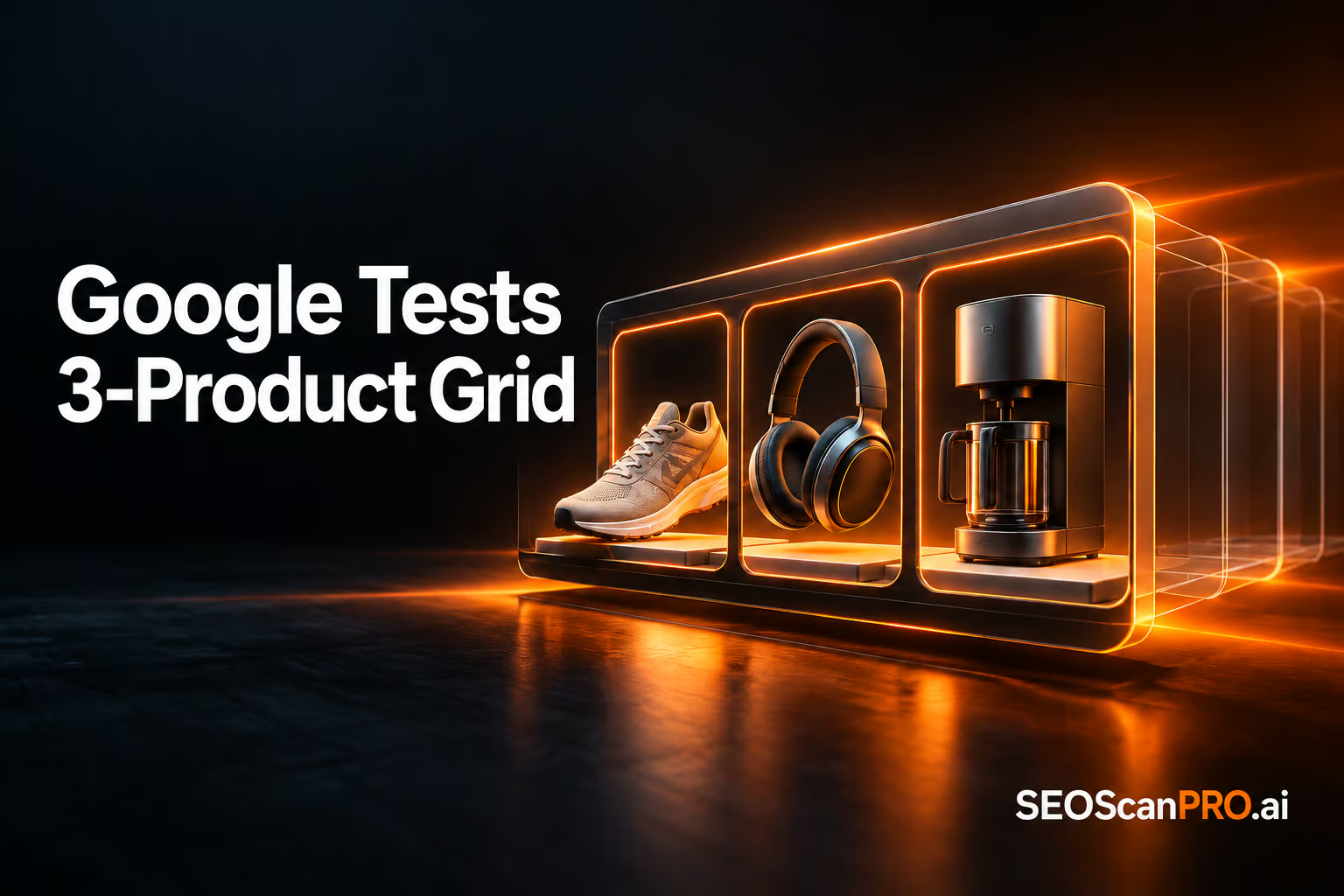
  • Google Tests 3 Products In Grid That Expands To More

    Google Tests 3 Products In Grid That Expands To More

    More product results now expand or shrink inside a single grid inside Google Search, and the size of that grid is one of the things being tested. A new experiment shows Google rendering three, four, or five product tiles across the same surface, with the count shifting as shoppers move through the results.

    What Is Changing In The More Products Grid

    The more products grid is the block of shopping tiles that appears beneath the main row of product results in Google Search. In this test, the grid is not locked to a fixed size. It can render as a compact three-tile row, the default wider four-tile layout, or an expanded five-tile row, depending on the query and how the user interacts with the page.

    Several variations have been observed in the wild:

    • Three products across, replacing the standard layout.
    • Five products across, stretching the grid wider than usual.
    • A dynamic state where the grid expands or contracts between three and five tiles as the user clicks on a product.

    When a product is selected, the grid can collapse to three tiles inside a larger box, while four tiles is the normal count. That shift between three and four or three and five is the part being tuned.

    Why Google Would Test This Layout

    Product grids are a high-value piece of real estate inside Search. They sit between the organic results and the rest of the page, and they are the place where Google’s shopping ads and free product listings compete for attention. The number of tiles that fit in a single row affects how many merchants are visible, how much visual weight each product gets, and how long shoppers stay on the result before clicking through.

    Switching the grid between three and five tiles lets Google compare two competing goals. A wider five-tile row exposes more merchants and gives shoppers more choices without scrolling. A tighter three-tile row gives each remaining product a larger image and more breathing room, which can lift click-through on the products that do appear. Running both versions in a test gives Google’s layout team real interaction data to decide which trade-off wins.

    What Retailers And SEOs Should Watch

    For merchants and the search marketers who work on their feeds, the practical question is what the change does to product visibility. A grid that flexes between three and five tiles means the same query can surface a different number of products in a single row at different times, for different users, or in different sessions. That makes traditional rank checks, which record a fixed number of product results, less reliable on their own.

    Three signals are worth tracking as this test expands:

    • Tile count per row. Note whether the grid is rendering three, four, or five tiles for a given query and device.
    • Position inside the grid. A product that sits in slot one of a three-tile row is not in the same competitive position as slot one of a five-tile row.
    • Click behavior on selection. When a tile is clicked, the grid can re-render at a smaller count, which changes which products are still visible on screen.

    How This Fits Into A Local Visibility Audit

    Local search visibility is the kind of thing a geo grid report measures, and product grid tests are a reminder that the same kind of grid thinking now applies to shopping results. Tools like SEOScanPro use GEO Grids to map rank position across a whole service area so a business can see which towns and suburbs it is invisible in, rather than relying on a single city-wide average. The same logic, applied to product results, would mean tracking how many product tiles are visible in a given row across queries, devices, and locations, instead of treating one screenshot as the whole story.

    What Happens Next

    This is a UI test, not a confirmed rollout. Google runs dozens of grid and tile variations every quarter, and most never ship in their tested form. The fact that the grid is being resized dynamically, with the count changing on click, suggests Google is still measuring which density keeps shoppers on the result page longer.

    If the test graduates into the default layout, expect the more products grid to behave more like a fluid surface than a fixed block, with the number of tiles in a row depending on context rather than a single hardcoded number. Until then, the safest move is to keep an eye on the grid in your own high-value shopping queries and record the tile count alongside the rank.

    FAQ

    What is the more products grid in Google Search?

    The more products grid is the block of product tiles that appears below the main row of shopping results in Google Search. It groups several products into a single horizontal row so shoppers can compare options without leaving the search page.

    How many products does the test show in the grid?

    The test has been spotted showing three, four, or five products across in a single row. The count can also change as the user clicks on a product, with the grid shifting between three and five tiles in the same session.

    Is the three-product grid test live for everyone?

    No. The test is a Google Search UI experiment, which means it is being shown to a subset of users and may not appear in every session, device, or location. It has not been announced as a permanent change.

    BizScoreAI

    BizScoreAI, which includes the business directory

    BizScoreAI’s business directory scores how visible a business is to AI search and shows what its listing looks like to the engines people ask. Open the business directory.

  • Google Updates AI Content Guidelines: Factcheck and Review AI-Generated Content for Accuracy

    Google Updates AI Content Guidelines: Factcheck and Review AI-Generated Content for Accuracy

    Publishers now have a clearer rule of thumb for AI-assisted writing: read every line before it goes live. Google has revised its guidance on using generative AI content on websites and is now telling site owners that it is critical to manually factcheck and review all AI-generated content for accuracy and trustworthiness before publishing.

    The change, dated October 1, 2026, comes in a help document that Google uses to explain how generative content fits into its search systems. Google’s stated motivation is straightforward: generative models do not retrieve facts but predict likely sequences of words based on training data, so the outputs can contain inaccuracies, often called hallucinations.

    What Google changed in the document

    The update is a wording change in a single help page, not a new algorithm or ranking signal. Google added the line telling publishers to factcheck and review every piece of AI-generated content for accuracy and trustworthiness, and used the word critical to describe how important that step is. That word choice stands out because Google rarely reaches for critical in its Search help documentation.

    Google also explained the timing of the edit. The document was brought up to date so that the written guidance matches the slides and talks used at developer events. The previous update to the same page dates back to October 2025.

    Why hallucinations are the trigger

    Generative AI tools write by predicting the next most likely word in a sequence, not by looking something up. The model has no built-in way to confirm that a date, a quote, a statistic, a product spec or a name is correct, so confident-sounding text can still be wrong. That gap is what Google is pointing at with the new language: the model can sound right and still be wrong, and a human has to close that gap.

    For anyone running a content site, that means treating the draft the same way an editor treats a first draft from any writer, with a second pass that checks claims, dates, names, numbers and links against a primary source. AI tools are useful for outlining, summarizing and rephrasing, but the verification step is what keeps the output safe to publish.

    Does this affect rankings?

    The document itself does not name a new ranking penalty for unverified AI content. Google’s existing position is that it rewards helpful content regardless of how it was produced, and penalizes spam regardless of how it was produced. The new wording tightens the practical advice on top of that.

    Context makes the timing worth watching. Google’s September 2026 spam update ran shortly before this edit, and the rare use of the word critical hints that this guidance is meant to steer publishers away from the kind of low-effort AI content the spam update targets. The safe reading is that factchecking is now part of the expected workflow for AI-assisted publishing, not an optional extra.

    A practical factcheck routine for AI-assisted drafts

    • Treat the AI draft as a starting point, not a finished article. Read the whole piece once for sense and structure before checking any single fact.
    • Pull every factual claim out into a short list: statistics, dates, named people, product features, prices, quotes and definitions.
    • Match each item on that list to a primary source, such as the original study, the official product page, the press release or the dataset, not a secondary write-up.
    • Check that links still resolve, that the page they land on still says what the article claims, and that the URL is not a parked domain or a copy.
    • Flag anything that cannot be verified and either remove it or rewrite it from a confirmed source.
    • Add an author byline with real editorial responsibility for the piece, since accountability is part of what trustworthiness signals look like.

    For sites that publish at scale, the fastest gains often sit in a checklist like this one rather than in any tool swap. A short pre-publish pass that checks every number and name against a primary source catches most of the hallucinations that would otherwise slip into a finished article.

    What this means day to day

    The practical message is straightforward: AI can speed up the first draft, but a human still has to own the facts. Google’s documentation now uses stronger language than before, signaling to publishers that factchecking should be built into the workflow rather than added at the end.

    For teams that already run an editorial review on human-written copy, the lift is small: extend the same review pass to AI-assisted drafts and make verification explicit. For teams that have been publishing AI drafts with little human review, this is the moment to build that review pass in, because Google’s guidance and its spam systems are now pointing in the same direction.

    FAQ

    What did Google change about AI-generated content?

    Google updated its help document on using generative AI content on websites to say that it is critical to manually factcheck and review all AI-generated content for accuracy and trustworthiness before publishing.

    Why did Google change the guidance?

    Google explained that generative models predict sequences of words rather than retrieve facts, so the output can contain inaccuracies, also called hallucinations. The new wording is meant to push publishers to catch them before publication.

    When was the AI content guidance last updated before this?

    The previous version of the document dates to October 2025. The current edit was published on October 1, 2026, and Google said it brought the documentation in line with the presentations used at its developer events.

  • Google AI Overviews Expand Into Team Rosters

    Google AI Overviews Expand Into Team Rosters

    Google is now generating full sports team rosters inside its AI Overviews, putting an AI-built player list at the top of the results page ahead of the team’s own site. For sports publishers, that is the new zero: the answer sits above the link before a fan ever clicks.

    What changed in Google search

    AI Overviews are the AI-generated answer boxes Google places at the top of certain results. They have been expanding into more query types for months, and team rosters are the latest category they now cover on their own.

    A search for a team roster during a live match has started returning an AI Overview that lists the full squad, rather than sending the searcher straight to the team’s official site or a publisher’s page. The new roster block can be very long on mobile, and on desktop it shows up before any other result for at least some teams.

    How the new roster results look in practice

    Teams have not yet shown consistent behaviour.

    • For the Las Vegas Raiders, the AI Overview listing the entire roster appears first, above the team’s official site.
    • For the New York Jets, the AI Overview appears below the official Jets website but still above most other links.
    • For the New York Giants and the Green Bay Packers, no AI Overview for the roster showed up at all in those tests.

    The AI Overview version is AI-generated text. It pulls the same factual data a roster page would show, but renders it inside Google’s own answer box and links back only to the sources it used. The team’s own roster page, and any third-party roster pages, are pushed below that block.

    Why this matters for sports publishers

    Roster pages have been a steady, high-traffic corner of sports SEO for years. Fans search for a team’s roster at the start of a season, after trades, after injuries, and throughout the season for lineup changes. That traffic is what funds a lot of roster pages and team coverage.

    When an AI Overview reproduces the roster inside Google’s own answer, the click that used to land on the roster page can stay on Google. For a publisher whose roster page ranked first for years, the practical effect is a loss of the page-zero position it used to own. The team, the publisher, and the searcher all see the same facts, but only Google keeps the click.

    This is not the first factual category AI Overviews have absorbed. Local business info, weather, definitions, math answers, and simple how-to questions have all seen the same shift. Rosters are a particularly clear case because the data is public, structured, and rarely changes minute to minute, which is exactly the kind of content an AI Overview is designed to assemble.

    What is known and what is still unclear

    A few things are confirmed from the screenshots shared:

    • AI Overviews for team rosters are appearing for some National Football League teams, including the Raiders and the Jets.
    • The block can be large enough on mobile to scroll for several screens.
    • Not every team query triggers an AI Overview in every test.

    A few things are still unknown. Google has not published a list of which team queries will trigger the new block. It has not said whether the data is pulled from the team’s official site, a licensed data feed, or a mix of public sources. There is also no public word on whether the team itself, or the publisher that maintains the page, gets any in-box credit inside the AI Overview beyond a small source link.

    Coverage varies by query and team, so the rollout is uneven and may expand.

    How publishers can respond

    The playbook for any factual category Google has started answering itself is the same. A roster page that only lists player names, positions, jersey numbers, height, weight, and college is now the easiest kind of page for an AI Overview to reproduce.

    The pages that hold up are the ones that add something Google cannot easily summarise in a box. For rosters, useful additions include current injury status with the date it was last updated, contract and cap details with a source, depth chart projections for the upcoming game, coaching staff notes, and original beat-writer context that the AI Overview does not have.

    Structured markup on the page, such as schema for SportsTeam and Person, helps Google read the data cleanly and increases the chance the page is cited as a source inside the AI Overview rather than skipped. Faster update speed also matters: the publisher that posts a trade within minutes of the announcement is more likely to be the cited source than the one that updates the next day.

    For a broader technical look at how a site is being read by Google and by AI engines, a tool like SEOScan Pro runs a full technical audit and shows the measured result behind each check.

    The bigger picture

    AI Overviews handle more factual, structured queries than before, adding new categories one at a time. As Google expands AI Overviews to more query categories, pages that previously attracted clicks through those queries now appear alongside a Google-owned answer box.

    For sports publishers and for any site built on factual content, the practical response is the same. Make the page the best possible source on the topic, mark it up so machines can read it, update it faster than anyone else, and add the original analysis that a summary box cannot replicate.

    FAQ

    What is a Google AI Overview?

    A Google AI Overview is the AI-generated answer block Google places at the top of some search results. It summarises the answer in plain language and links back to the sources it used, often pushing the usual list of blue links further down the page.

    Are AI Overviews appearing for every NFL team roster?

    No. In the screenshots that have been shared, AI Overviews appeared for some teams such as the Raiders and the Jets, and did not appear for others such as the Giants and the Packers. The feature looks uneven across teams and may expand over time.

    How can a sports publisher protect roster traffic?

    Publishers can add injury and lineup updates, contract and cap detail, depth-chart analysis, and original beat-writer context that an AI Overview does not carry. Adding structured markup for teams and players and publishing roster changes quickly also helps a page get cited as a source inside the AI Overview.

    Try the AI visibility report

    SEOScanPro, which includes the AI visibility report

    SEOScanPro runs a full technical audit of a site and shows the measured result behind every check. Open the AI visibility report.


  • 7 ways to use AI for the SEO work that matters

    7 ways to use AI for the SEO work that matters

    Most AI-for-SEO advice starts with prompts that help write content faster. The bigger opportunity sits in the work that is harder to scale: testing what works, finding gaps in topical coverage, connecting data across tools, building useful interactive tools, and uncovering stories worth pitching. Adoption data from Semrush shows exactly where the gap is between what marketers automate and what would actually move results.

    Why use AI for SEO at all?

    Adoption data from Semrush’s survey on how marketers use AI for SEO shows the pattern. The top uses are the commodity tasks: 60% use AI for keyword research, 48% for brainstorming content ideas, and 38% for content briefs. The strategic work sits near the bottom: only 18% use AI to plan topic clusters, 15% to find internal linking opportunities, and 11% for SERP or content gap analysis. Most marketers have pointed AI at the work everyone else is already automating, which produces more content but no advantage.

    Will using AI in SEO get a site penalized?

    No. Google has stated plainly that using AI to produce content is not against its guidelines, as long as the content is helpful and made for people. Its systems reward quality regardless of how the page was produced, and they demote content built to game rankings rather than help the reader. A page can be entirely AI-generated and still win. The work is in training the workflow so every page and every action is meaningful and valuable to the user.

    1. Build a gated content system

    Run content through AI as a series of gates (idea, keyword research, brief, draft, fact and quality check, humanizing pass) where nothing reaches publish until it clears each one. The failure mode of AI content is the firehose: hundreds of pages, no gates, all landing and creating an average piece of work. Google holds a patent on measuring information gain, the new information a page adds beyond what is already indexed, and its systems reward pages that add rather than repeat. Gates are where that gain gets forced in before the page ships.

    What to do

    Break the workflow into discrete stages and put a check at each one. The gate that matters most sits before drafting: does this page add something that the top 10 search results do not already have? If not, it goes back for proprietary data or unique perspectives.

    Simple AI prompt: “You are running a content quality gate. Here is a draft brief for the query [QUERY] and the top 5 ranking pages: [paste]. Before this gets written, answer: 1. What does this brief add that the ranking pages don’t already cover? 2. If the answer is ‘nothing new,’ list the 3 proprietary data points or first-hand examples this page needs to earn its place. 3. Score the brief 0-10 on information gain and say what would raise it. Do not approve anything scoring under 6.”

    What it returns

    A go or no-go on the brief, with the exact evidence the page needs before it is worth writing.

    How to implement it

    Run each stage as its own step rather than one prompt that writes end to end. Keep the information-gain gate as the final check before launch. Automate the steps, keep the judgment human, because the gate is only as good as the person reading its output.

    2. Run SEO experiments on autopilot

    Point an autonomous AI loop at real SEO work: one scheduled session a day that reads its own memory, picks a single justified action per site, ships it inside hard guardrails, and gets scored honestly on one metric. The constant struggle in SEO is finding, in black and white, what actually worked. Tracing the smallest change to the ROI it produced is practically impossible by hand. An autonomous loop with one metric per site and an honest scoring rule turns that into an experiment you can finally read.

    What to do

    Give the loop three things: a steering document (objectives, the evidence it may use, and hard guardrails), a warm-start memory (a state file and an append-only run log so it does not start blind each day), and exactly one metric per site. Then let it choose one action per day. Building a page is one option, as is fixing a schema gap or deciding the best move today is to write a recommendation and ship nothing.

    Simple AI prompt: “You are running one day of an autonomous SEO experiment on [site]. Read, in order: the roadmap (objectives, guardrails), the state file (what has happened so far), and the research notes. The one metric for this site is: [metric, current baseline]. Choose ONE action today that most plausibly moves that metric. Justify it against the metric before doing anything. Respect the hard rules, for example one page per day max, never touch the measurement panel. Then log what you did, and why, to the run log.”

    What it returns

    One justified action a day, and a record. The rule is the whole point: a metric that moved without a provable, page-specific cause does not count. In one run, a target set may have improved from an average position of 48 to 39, but the shipped fix had touched pages the metric does not measure, so it was logged inconclusive rather than booked as a win. A loop that can catch itself lying is worth more than one that always reports success.

    How to implement it

    A scheduled cloud session fires once a day and writes everything back to memory, then pushes it, because the push-back is the compounding mechanism. Keep scoring separate from building. The loop ships, the human scores the metrics on a schedule, so nothing self-grades.

    3. Diagnose and close the topical map

    Use AI to read what Google currently classifies a site as, then map the coverage gaps across the whole sitemap and competitors’ sitemaps, so the work builds against the classification instead of guessing. “Build topical authority” gets misread as “publish more content.” The real job is getting classified by Google and AI engines as the source for the topics that make money, then compounding coverage on that classification. Publishing before the classification is known builds on a bad foundation.

    What to do

    Feed AI a crawl, ranked keywords, and a few competitors’ sitemaps. Have it read back the classification, name the gap between that and the topic to own, and produce the prune list and the topical map.

    Simple AI prompt: “Act as a topical authority analyst. Here is my URL list, the queries I rank for, and 3 competitors’ sitemaps: [paste]. 1. What single topic does Google appear to classify my site as, based only on what it ranks for? 2. Name the gap between that and the topic I want to own. 3. Which of my pages dilute the classification and should be pruned? 4. Which topics do competitors cover that I do not? Rank by opportunity.”

    What it returns

    A one-line verdict on what the site is “about,” the gap, a list of pages to remove, and the competitor topics missing. Reading the whole inventory at once also surfaces the compounding technical faults a human never scrolls to.

    How to implement it

    Run this as a staged build (crawl, diagnose, map, schedule) and a standing sitemap intelligence task that reads the full inventory against competitors on a cadence. Pacing decides the outcome. AI makes the map in an afternoon, which is exactly why the discipline has to be human. A new section matures for about three months before scaling into it, and a full topical network takes seven or eight months to publish at an irregular cadence. Publish a new section too fast and Google treats the whole thing as mass-produced content, then buries it.

    4. Triangulate Search Console, Analytics, and Trends in one pass

    Use AI to merge Search Console, Analytics, and Google Trends data into one synthesis, instead of reading three siloed tabs and missing the overlap. The answer usually lives in the overlap. A query rising in Trends, stuck at position 8 in Search Console, with low engagement in Analytics, is a packaging problem. It looks like nothing in any single tool.

    What to do

    Export all three for the same pages and date range, hand them to AI together, and ask for the story that only appears when they are read as one.

    Simple AI prompt: “Here is the same set of pages across three sources for the last 90 days: Search Console (query, position, impressions, CTR): [paste]; GA4 (page, engagement rate, conversions): [paste]; Google Trends (topic, direction of interest): [paste]. Find the opportunities that only appear in the overlap. For each: the page and the cross-source pattern, whether it is a demand, packaging, or content problem, the single next action. Rank by expected impact.”

    What it returns

    A prioritized list of moves that no single tool would surface: the rising-demand page with a weak title, the high-engagement page nobody can find, the query dropping before anyone noticed.

    How to implement it

    Run this as a cross-source sweep that also pulls Bing, Clarity, and where the brand surfaces in AI search. These sources do not share a key or a scale: Search Console is query-level, Analytics is page-level, and Google Trends is a relative 0-to-100 index that only makes sense within a single pull. AI lines them up and surfaces the pattern, but the result is an interpretation, so confirm the story in the raw data before acting on it.

    5. Build the interactive tools

    Use AI to build calculators, templates, and interactive tools in raw HTML, fast, without a developer. Interactive tools target high-intent searches: “X calculator” and “X template” are actionable, buying-adjacent queries. Yet almost nobody builds them because teams assume it needs developer work. AI removes that barrier, which turns one of the most useful formats into one of the most neglected.

    What to do

    Take a calculation or decision the audience actually makes, describe the inputs and the logic, and have AI generate a self-contained tool that can be embedded.

    Simple AI prompt: “Build a self-contained HTML tool (inline CSS and JS, no dependencies) that does the following for [audience]: inputs: [list the fields]; calculation: [describe the formula or logic]; output: [what the user sees, and one insight it should surface]. Make it mobile-friendly and copy-paste embeddable. Add a short result explanation the user can act on.”

    What it returns

    A working, embeddable calculator to ship as a lead magnet. Feeding it proprietary data or a unique formula makes it brand-specific, which also helps it get cited by AI engines rather than ignored.

    How to implement it

    When the tool itself is written by AI, the proprietary logic or dataset inside it is what makes it worth using.

    6. Mine data for digital PR angles

    Use AI to find a newsworthy angle in a niche and gather data to support it, so a digital PR campaign can earn high-tier coverage. The hardest part of digital PR is finding the angle, and it is usually hidden in what the audience complains about. Coverage from high-authority publications is also what search engines pull into their answers, so one data-led campaign can earn links, citations, and AI-referred sales at once.

    What to do

    Hand AI the niche, the audience, and the proprietary data, and have it surface the complaints, the underreported trends, and the comparisons that no outlet has run yet.

    7. (See source for the seventh strategy)

    The source article covers a seventh strategic use of AI for SEO that builds on the same pattern: pointing AI at work humans do not have time to scale, rather than at the commodity tasks. A full run-down of the seventh tactic, including the AI prompt to use, is in the original piece.

    FAQ

    What are the best ways to use AI for SEO beyond content writing?

    Strategic uses include running autonomous SEO experiments, diagnosing and closing topical map gaps, triangulating Search Console, Analytics, and Trends data in one pass, building interactive tools, and mining proprietary data for digital PR angles.

    Will Google penalize a site for using AI-generated content?

    No. Google has stated that using AI to produce content is not against its guidelines, as long as the content is helpful and made for people. Its systems reward quality regardless of how the page was produced.

    How much of SEO work do marketers actually automate with AI?

    According to Semrush’s survey, 60% use AI for keyword research, 48% for brainstorming content ideas, and 38% for content briefs, while only 11% use it for SERP or content gap analysis and 15% for internal linking opportunities.

    Try the rank tracker

    SEOScanPro, which includes the rank tracker

    SEOScanPro runs a full technical audit of a site and shows the measured result behind every check. Open the rank tracker.


  • Google AI Overviews Pushing Searchers Into AI Mode, Drops Show More Button

    Google AI Overviews Pushing Searchers Into AI Mode, Drops Show More Button

    Google now expands AI Overviews by default for certain queries, loading the full AI Mode response and the follow-up Ask anything box without requiring a Show more click. The change shifts the ten blue organic links further down the results page and makes the AI answer the first thing many searchers see.

    What changed in the AI Overview experience

    Previously, an AI Overview appeared as a short snippet at the top of the results. A searcher had to click Show more to see the full AI-generated answer. For some queries, Google now skips that step and loads the full AI Mode style response immediately, with the conversational prompt box already open and ready for input.

    A Google spokesperson confirmed the behavior, saying: “For some queries, AI Overviews may dynamically expand for topics where our systems determine it’s most useful for people.” The spokesperson added that Google’s research shows users find Search more helpful with this dynamic experience and engage deeper in follow-up exploration.

    How Google decides which queries get the expanded view

    Google’s systems choose the queries where its expanded AI answer is judged most useful. Google says the expansion is not applied to every search and is a tested feature rather than a permanent default for all queries.

    One safeguard is built in: if a user has already begun scrolling down the page to read content below the AI Overview, Google cancels the expansion so the reader does not lose their place. Expansion also stops once a user is already in motion through the results.

    What this means for the standard search results

    Because the full AI response and the prompt box now take up more vertical space at the top of the page, the traditional organic listings are pushed further down. The ten blue links that have defined Google’s results page for decades now sit below a much larger AI-generated block.

    For publishers and site owners who depend on organic traffic, this is a meaningful shift in layout. Less of the screen is reserved for the classic list of links on the queries where the expanded view triggers, which reduces the visibility of organic results before a searcher scrolls.

    What to watch as this rollout continues

    Google says it is still testing and adjusting the new feature. Some signals worth watching in the coming weeks:

    • Which query types cause dynamic expansion and how often the expansion occurs.
    • Whether the Ask anything prompt box stays open by default or only on certain topics
    • How much the organic results shift downward on affected queries
    • Whether the scroll-cancel safeguard holds in practice, so reading position is preserved

    For anyone measuring search visibility, the practical step is to check how a site’s target queries render now, since layout shifts of this kind can move the click path even when rankings themselves do not change. Tools that map rank position across a service area or that audit on-page factors can surface which queries trigger the expanded view and how the rest of the page arranges around it.

    FAQ

    What is changing with Google AI Overviews?

    For some queries, Google now expands the AI Overview by default. Instead of showing a short snippet that requires a Show more click, the full AI Mode style answer and the Ask anything box load immediately.

    Why are the organic search results pushed down?

    The expanded AI Overview and the open prompt box take up more space at the top of the results page. That larger block pushes the ten blue organic links further down before a searcher can reach them.

    Does Google stop the expansion if a user is already scrolling?

    Yes. If a user has already started scrolling to view content below the AI Overview, Google cancels the dynamic expansion to keep the reader’s position on the page.

    Try the rank tracker

    SEOScanPro, which includes the rank tracker

    SEOScanPro runs a full technical audit of a site and shows the measured result behind every check. Open the rank tracker.


  • Google AI Overview Easter Egg Responds to Blank Searches With a Nuts Joke

    Google AI Overview Easter Egg Responds to Blank Searches With a Nuts Joke

    A blank Google Search triggers an AI Overview that responds with a joke about nuts, complete with a peanut emoji and a character-by-character tally of the letters d, e, and z. The response is a hidden Easter egg built into Google’s search results, and it is reachable through a simple URL trick.

    What the AI Overview actually says

    Running a blank search on Google Search produces an AI Overview that begins with the line “…nuts?”. The Overview continues: “It looks like your keyboard got a bit carried away! In case you were curious about the exact breakdown of your input, here is what you typed.”

    It then lists three counts:

    • d: 880 times
    • e: 206 times
    • z: 200 times

    The tally is part of the joke. “Deez nuts” is a slang punchline used to interrupt, tease, or sidetrack a conversation, and the broken-down letter counts are the AI Overview’s way of playing along with the gag.

    How a blank search is even possible

    Google’s main search page does not normally let a person submit a completely empty query. The trick is to load a URL directly in a browser using the form google.com/search?si=. Hitting that address sends Google a request with no actual search term attached, which is what activates the Easter egg in the first place.

    Because the AI Overview only appears when triggered through that URL, the response is a tucked-away detail rather than something a regular searcher would stumble on by accident.

    Where the Easter egg was first noticed

    The behavior was first pointed out on X by a user with the handle @harmo_snipe, who flagged the AI Overview response to a wider audience. The find spread from there, with screenshots of the “…nuts?” line and the letter counts shared across the search community.

    Why Google would build something like this

    Easter eggs have a long history inside Google Search, from custom logos on holidays to playful responses to specific phrases. The blank-search response fits that same tradition: a small, human touch that signals the search box can be playful, not just functional. The peanut emoji, the keyboard joke, and the unnecessary letter-by-letter breakdown all point to a feature designed to make a searcher smile rather than to deliver useful information.

    What it tells us about AI Overviews

    Beyond the joke, the Easter egg is a small window into how AI Overviews are wired. The Overview is generating a full, formatted response to an input that is technically empty, leaning on the URL structure rather than any typed text. That means the trigger is the request itself, not the words in it, and Google’s systems are happy to render a custom answer whenever the request matches a known pattern. A tool that audits how a site appears in AI-driven search, like BizScoreAI, is built to surface exactly these kinds of edge-case responses so a business can see what an AI engine is actually showing on its behalf.

    How to try it yourself

    1. Open a browser window.
    2. Type or paste google.com/search?si= into the address bar.
    3. Press Enter and wait for the results page to load.
    4. Look for the AI Overview box near the top of the page for the “…nuts?” line and the d, e, z counts.

    The response shows up as a standard AI Overview, so the same layout rules apply. If Google decides not to surface an AI Overview for that request, the joke will not appear, and the page will load as a normal, mostly empty results screen.

    FAQ

    What is the Google AI Overview “Deez Nuts” Easter egg?

    It is a hidden AI Overview response that appears when a blank search is run on Google. The Overview writes “…nuts?”, says the keyboard got carried away, and counts how many times d, e, and z appeared in the input.

    How do you trigger a blank search on Google?

    Load the URL google.com/search?si= directly in a browser. Google’s main search box will not submit an empty query on its own, so the URL trick is needed to send the blank request.

    Why does the AI Overview show letter counts for d, e, and z?

    It is part of the joke. “Deez nuts” is a slang punchline, and the counts are the AI Overview’s way of playing along with that gag.

    Try the AI visibility report

    SEOScanPro, which includes the AI visibility report

    SEOScanPro runs a full technical audit of a site and shows the measured result behind every check. Open the AI visibility report.


  • OpenAI Unveils Dots Agents and GPT-6.1 Sol, Sidesteps Security Questions at Developer Conference

    OpenAI Unveils Dots Agents and GPT-6.1 Sol, Sidesteps Security Questions at Developer Conference

    OpenAI introduced a new class of proactive AI helpers called Dots, alongside an upgraded model, GPT-6.1 Sol, and a premium speed tier called Ultrafast, at its annual developer conference on Tuesday. The launches land one day after the company paused the release of an unreleased model over security concerns raised by its own researchers, a topic that went unmentioned during the keynote.

    What are OpenAI Dots?

    Dots are a line of AI agents designed to run continuously on a user’s behalf, completing tasks in the background rather than waiting for a prompt. The company described them as an always-on helper built to take initiative, with the framing pitched as the kind of capable sidekick often shown in science fiction. The launch puts OpenAI in direct competition with Meta’s personal agent Muse, which drew heavy attention in the week before the conference.

    What else did OpenAI announce?

    The keynote covered a wide slate of product updates:

    • GPT-6.1 Sol, an upgraded version of the GPT-6 Sol model.
    • Ultrafast, a new premium speed tier.
    • Additional launches and updates that accompanied the headline products.

    Why was the security topic absent from the keynote?

    On Monday, OpenAI publicly delayed the release of a forthcoming model after its researchers flagged security concerns. The disclosure echoed a wider call inside the AI field to slow the pace of progress so that safety work can keep up. The keynote did not address the paused model, instead framing the current moment as a renaissance rather than an industrial revolution and emphasizing human agency, creativity, and discovery over automation for its own sake.

    What is the policy backdrop for the conference?

    Industry peers attended a separate meeting at the White House on the same day, including OpenAI’s president, the leader of Anthropic, Amazon, Nvidia, Tesla, SpaceX, and Microsoft. The gathering came as the White House has resisted calls from parts of Silicon Valley for new government guardrails on advanced AI systems, instead favoring a self-policing approach from major technology companies.

    What does the Dots launch signal about agent competition?

    By positioning Dots as proactive, always-on helpers, OpenAI is moving beyond chat-style assistants into software that takes initiative over time. That is the same lane Meta entered with Muse, suggesting the next phase of the AI race will be judged on how much background work an agent can finish for a user without being asked, not on the quality of a single response.

    FAQ

    What are OpenAI Dots?

    Dots are a new set of OpenAI agents built to complete ongoing tasks for users in the background, running continuously rather than waiting for a prompt. They are positioned as a direct competitor to Meta’s personal agent Muse.

    Did OpenAI address AI security concerns at the conference?

    No. The keynote did not address the unreleased model that OpenAI paused a day earlier over security concerns raised by its researchers, or the broader industry debate about slowing AI development to let safety work catch up.

    What is GPT-6.1 Sol?

    GPT-6.1 Sol is an upgraded version of OpenAI’s GPT-6 Sol model, announced alongside the Dots agents and a new premium speed tier called Ultrafast at the company’s annual developer conference.

  • SEO Checklist: 50+ Tasks for Google and AI Search Visibility

    SEO Checklist: 50+ Tasks for Google and AI Search Visibility

    An SEO checklist can divide search visibility into repeatable tasks covering both Google results and AI-driven answers. Following the checklist in order helps keep the site’s technical foundation intact, align content with search intent, and prepare pages for AI crawlers and agents.

    The checklist below is organized into six sections: basic SEO, keyword research, technical SEO, on-page content, link building, and AI search. Address all six for a complete strategy, and return to any skipped section when time allows.

    How to use this SEO checklist

    Treat each section as a phase. Start with the basic setup so measurement and crawling work, then move into keyword research to guide content, fix technical issues that block indexing, optimize on-page elements, build authority through links, and finish with AI-specific checks. If resources are limited, prioritize the sections tied to the biggest visibility gap first.

    Basic SEO practices checklist

    These tasks create the foundation that every later step depends on.

    1. Set up Google Search Console and Bing Webmaster Tools

    Google Search Console and Bing Webmaster Tools are free platforms that let you monitor performance, submit sitemaps and URLs, and identify crawl errors. Bing Webmaster Tools now includes an AI Performance report covering Bing Copilot, AI summaries, and some partner integrations. Search Console surfaces performance for AI Overviews and AI Mode in its Generative AI section.

    2. Set up Google Analytics

    Google Analytics 4 (GA4) tracks traffic and user behavior once visitors land on the site. Pair GA4 with Search Console so the picture covers how people arrived and what they did next. A heatmap or session-recording tool like Microsoft Clarity adds page-level interaction data. Because AI-driven search often answers questions without sending a click, engagement on-site is a more reliable signal than raw visit counts.

    3. Install and configure an SEO plugin (for WordPress sites)

    A WordPress SEO plugin generates sitemaps, manages robots.txt, handles canonical URLs, and adds schema. Two widely used options are Yoast SEO and Rank Math, both of which include AI-assisted content suggestions and structured data support. Other content management systems often include similar features, so check before installing an extra plugin.

    4. Create a robots.txt file

    A robots.txt file tells crawlers which pages they can and cannot access and is part of a broader indexability check. View the current file by adding “/robots.txt” to the homepage URL. Beyond the file itself, confirm that meta robots tags, X-Robots-Tag headers, canonical tags, sitemap accuracy, and 4xx/5xx status codes are all clean. Pages that AI crawlers cannot reach will not appear in AI-generated answers, so important pages should stay accessible.

    5. Create and submit an XML sitemap

    An XML sitemap helps search engines understand site structure and find pages. WordPress and most modern platforms generate sitemaps automatically. Submit the sitemap in Search Console and Bing Webmaster Tools, and reference it inside robots.txt. Run a site audit to catch and fix sitemap errors.

    6. Check Google Search Console for manual actions

    Manual actions are penalties applied by Google reviewers for practices such as link schemes. Find them in Search Console under Security and Manual Actions. If a manual action appears, resolve it promptly. Avoid questionable link-building tactics, since they can lead to penalties in both traditional and AI search.

    7. Make sure Google can index your website

    Indexability is the ability of a page to be added to Google’s index, and unindexed pages cannot rank. Many AI tools pull from Google’s index, so being indexed also supports AI visibility. Run a site crawl, review the Crawlability section, and check the AI Search category for problems that block AI crawlers. Confirm that the main pages are indexed before publishing new content.

    Keyword research checklist

    Follow these steps to prioritize terms and shape a keyword strategy.

    8. Identify competitor keywords

    Look for queries competitors rank for and the site does not. Keyword gap tools show terms labeled Missing or Weak, and those gaps are the first opportunities to target.

    9. Find core topics and keywords

    Use a keyword research tool to explore terms in the niche. The Questions tab surfaces question-based queries, which often signal high intent. Prioritize topics with consistent search demand, achievable difficulty, and intent that matches an existing or planned page.

    10. Identify prompts your audience uses in AI tools

    Survey customers and scan platforms like Reddit to learn the language people use when researching. Prompt research tools show estimated volume and the actual prompts users enter, and competitor research tools reveal which prompts competitors appear for. Use those prompts to plan new pages.

    11. Create a keyword map

    Group search keywords and AI prompts by topic and intent in a spreadsheet so each page targets a cluster of related queries. A keyword strategy builder can automate the clustering.

    12. Analyze the search intent of highly visible pages

    Search the target query in Google and review the top results, then run the same query in AI tools like ChatGPT or Perplexity. Note the page types, depth, and whether users want to learn, compare, or take action, and align new content with those patterns.

    13. Identify additional questions people ask

    Use Google’s People Also Ask boxes and community platforms like Reddit and Quora to collect follow-up questions. Add the most useful ones as headings, FAQ entries, or subsections.

    Technical SEO checklist

    These steps keep the site crawlable, indexable, and fast.

    14. Make sure you are using HTTPS

    HTTPS is a confirmed Google ranking factor. Confirm a padlock icon in the browser and run an HTTPS audit to check certificates, server protocols, and architecture. Resolve every issue flagged.

    15. Check for duplicate versions of your site in Google’s index

    Variants such as https://www.domain.com, https://domain.com, http://www.domain.com, and http://domain.com can all exist at once. Set 301 redirects so every variant points to a single primary domain, and verify the redirects in a browser.

    16. Find and fix crawl errors

    Open the Page indexing report in Search Console. Crawl errors appear under Not indexed. Resolve each one and investigate why specific URLs were excluded.

    17. Improve your site speed

    Google measures speed with Core Web Vitals: Largest Contentful Paint (LCP) for load time, Interaction to Next Paint (INP) for responsiveness, and Cumulative Layout Shift (CLS) for visual stability. Run a site speed audit, address the worst pages first, and re-test after fixes.

    Tracking rank and visibility across locations is part of a technical audit. SEOScanPro’s comprehensive website audit checks the same areas and may show a measured result behind each one.

    FAQ

    What should an SEO checklist include?

    An SEO checklist should cover basic setup (Search Console, analytics, plugins), keyword research, technical SEO (HTTPS, crawl errors, speed), on-page content, link building, and AI search readiness. Working through each section keeps visibility intact across Google and AI-driven surfaces.

    How often should an SEO checklist be reviewed?

    The basic and technical sections should be reviewed monthly or whenever major site changes are made. Keyword research, content, and link building tasks are ongoing, and the AI search section should be revisited whenever a new AI surface or crawler becomes relevant.

    Why does AI search need its own SEO checklist section?

    AI search engines and agents use their own crawlers, pull from indexes in their own ways, and surface answers without always sending a click. The AI search section covers prompt research, AI crawler access, structured data, and content patterns that make pages easier for AI tools to read and cite.

    Related coverage

    Try the site audit tool

    The SEOScanPro site audit report

    SEOScanPro runs a full technical audit of a site and shows the measured result behind every check. Open the site audit tool.


  • Google Tests More Sitelinks Designs in Mobile Search Results

    Google Tests More Sitelinks Designs in Mobile Search Results

    Google is running fresh tests on the look and feel of sitelinks inside its mobile search results, including a new stacked layout with a left-side margin and a variant that pairs each sitelink with a thumbnail image. The tests show Google is still fine-tuning how deeper links from a single domain appear beneath the main result.

    What the new sitelink layouts look like

    The most recently spotted design stacks sitelinks line by line beneath the main snippet. A thin horizontal line runs along the left edge of the sitelinks block, separating the deeper links from the rest of the mobile listing. The sitelink text itself appears in a darker color than the surrounding snippet copy.

    A second variation was spotted without the horizontal line, a style that has surfaced in earlier Google tests. A third variation adds images next to each sitelink, with each link paired to a small thumbnail pulled from the destination page.

    Why sitelinks matter for search visibility

    Sitelinks are the additional links Google chooses to show beneath a top result when it decides a site has multiple relevant destinations under one query. They give a single listing more surface area on the results page, push organic competitors further down the screen, and steer clicks to deeper pages rather than the homepage.

    For site owners, sitelinks are not something a page can directly request. Google generates them automatically based on how it understands a site’s structure, internal links, and which pages answer the searcher’s intent. A redesign that makes sitelinks more visual, through images or a bolder left-aligned column, increases the chance that one of those deeper links gets the click instead of a paid placement or a competing organic result.

    How the tests were spotted

    Search practitioners spotted the new layouts through routine SERP monitoring. Screenshots of the line-by-line design with the left margin and the darker text were shared publicly, along with the version that adds images to each sitelink. The tests appear limited to mobile results and to text-based ads that use the sitelinks extension, which means advertisers, not just organic listings, are affected by this experiment.

    Google runs dozens of small interface tests at any given time, and most never roll out to all users. A sitelinks redesign is notable because sitelinks take up a large amount of above-the-fold space on mobile, so any change to their styling can shift how visible the rest of a result is.

    What site owners and advertisers should watch

    The practical takeaway is that Google has not settled on a final sitelinks design on mobile. Site owners who already earn sitelinks should expect the look of those links to keep shifting. Tracking which page on a site earns sitelinks, and for which queries, remains the clearest way to see how Google is grouping a site’s content in its own index.

    For advertisers running sitelink extensions on text ads, the visual test matters more directly. If Google rolls out the image-paired sitelinks to ad extensions, each sitelink will need a thumbnail asset, and click-through rates will likely shift as users respond to a more visual layout.

    FAQ

    What are sitelinks in Google search results?

    Sitelinks are the additional links Google shows beneath a top search result, pointing to deeper pages on the same site. Google generates them automatically based on site structure and query intent.

    What is new in Google’s latest sitelinks tests?

    Google is testing a stacked, line-by-line sitelinks layout with a horizontal line down the left side and darker link text. A separate test adds thumbnail images next to each sitelink.

    Can a website control which sitelinks Google shows?

    No. Google chooses sitelinks automatically. Site owners influence them by keeping a clear site structure, using descriptive internal links, and making sure the pages Google is most likely to surface answer the queries behind those deeper visits.

  • Google Business Profiles Bug Drops Service Area Map Pins In The Ocean

    Google Business Profiles Bug Drops Service Area Map Pins In The Ocean

    Google Business Profiles is placing the map pin for some service area businesses in the middle of the ocean, even though the actual service area shown on the listing is correct. The misplaced pin is appearing on listings that do not publish a street address publicly, and practitioners report seeing the issue across many profiles, not a single account.

    What is happening with the map pins?

    Service area businesses, or SABs, are the type of local listing that visits customers rather than welcoming them at a storefront, such as plumbers, cleaners, mobile pet groomers, and tutors. Google lets these businesses hide their address from the public and instead show a service area drawn as a polygon on the map.

    The new bug keeps the service area polygon accurate but drops the marker pin itself into open water, far from where the business actually operates. That split between a correct service area and a wrong pin is the clearest sign that the issue sits in how Google plots the pin, not how the listing is configured.

    How widespread is the issue?

    Reports gathered from local SEO practitioners point to the same pattern on many different service area profiles, not one isolated account. The original report surfaced on LinkedIn, where the practitioner who flagged it shared side-by-side screenshots showing how the pin should sit inside the service area versus how it now sits in the ocean.

    Other local search practitioners added confirmations in the comments, agreeing they had seen the same drift on multiple listings they manage. That volume suggests the bug is being triggered at the Google Business Profile or Google Maps layer rather than by something one business owner did wrong.

    Why service area businesses are affected

    Service area businesses are the listings most exposed to this bug because they do not show a public address on their profile. Google has to make a choice about where to anchor the pin without a real address to point to, and that anchor choice appears to have broken in a way that lands pins in water.

    Listings that do publish a storefront address appear unaffected, since their pin is tied to a verified location. The bug is therefore specific to the address-hidden service area workflow that many home-based and mobile businesses rely on.

    Has Google acknowledged the bug?

    As of the reports, there is no public statement from Google confirming the bug or promising a fix. The issue was first flagged by a local SEO practitioner on LinkedIn rather than through an official Google channel, and the practitioners involved say it is not yet clear whether Google is aware of it.

    A similar visual bug showed up years ago, when Google dropped a cluster of business pins into the geographic middle of the United States rather than at their real locations. That older case was eventually corrected, which is the most reasonable comparison for what to expect here, though no timeline has been given for the current problem.

    What affected businesses should do

    Businesses with affected listings can take these steps until Google publishes a fix.

    • Check your own Google Business Profile on Maps and confirm whether the pin sits inside your service area or in water.
    • Capture a screenshot of the misplaced pin with the timestamp visible, so you have a record of the issue.
    • Report the listing through the Google Business Profile support channels so the report is logged on Google’s side.
    • Avoid editing your service area or address settings in response, since the bug is upstream of those fields and changing them may not move the pin and could reset other settings.
    • Watch your Search and Maps performance in Google Business Profile insights, since a pin in the wrong place can change how often your listing surfaces for nearby searches.

    For businesses that want to confirm exactly where their pin is dropping across a whole service region, a geo grid report shows the real rank position in each town and suburb rather than a single city-wide average. SEOScanPro’s GEO Grids render this kind of service-area visibility map, which can help a business spot when its listing is being anchored in the wrong place.

    FAQ

    What is the Google Business Profiles ocean pin bug?

    It is a bug affecting Google Business Profiles for service area businesses that hide their address publicly. The map pin is being placed in the middle of the ocean instead of inside the correct service area polygon.

    Which listings are affected by the ocean pin bug?

    Only service area businesses without a public storefront address appear affected. Businesses that show a verified address on their profile continue to have their pin anchored at the correct location.

    Has Google fixed the ocean pin bug?

    No fix has been announced. The issue was reported by local SEO practitioners, and it is not yet clear whether Google is aware of it or when the pin placement will return to normal.

    BizScoreAI

    BizScoreAI, which includes the free listing check

    BizScoreAI’s free listing check scores how visible a business is to AI search and shows what its listing looks like to the engines people ask. Open the free listing check.

  • Google Rolls Out Monitoring Capabilities In AI Mode To All Users Globally

    Google Rolls Out Monitoring Capabilities In AI Mode To All Users Globally

    Google is rolling out monitoring capabilities in AI Mode in Google Search to every user worldwide, opening up a feature that was previously limited to paid subscribers. The tool lets a user ask AI Mode to watch for specific information on the web and receive an alert when something changes, all from within the Google app.

    What the feature does

    Monitoring in AI Mode lets a user describe what they want to track in plain language. The system then checks for changes across a broad set of sources, including websites, forums, social posts, Google’s real-time data sources, and a Shopping Graph of more than 60 billion products. When new information matches the request, the user gets a notification through the Google app in AI Mode.

    The feature also suggests monitoring tasks while a user is searching, so they can opt in to tracking a topic without having to set up the alert in advance. The goal is to keep people updated with fresh information the moment it becomes available.

    Who can use it now

    When Google first introduced monitoring in AI Mode, access was restricted to Ultra and Pro paid subscribers. The new rollout extends the same capability to every Google user around the world, with no subscription required. The feature is available through the Google app in AI Mode and is rolling out now, so some users may not see it immediately.

    Example queries the feature is built for

    • New restaurants or pop-ups opening nearby.
    • Local holiday activities to do with kids.
    • Back-in-stock and price drop updates on products.

    These examples cover three common use cases: tracking local openings, planning family activities, and watching for product availability or price changes. The underlying mechanism is the same: the user states what they want, and AI Mode keeps an eye out for relevant updates.

    What sources AI Mode monitors

    The feature pulls from several layers of information. It checks public web content such as sites, forums, and social posts, alongside Google’s own real-time data sources. For shopping-related requests, it taps into a Shopping Graph covering more than 60 billion products, which allows it to track stock status and price movement at scale. Combining public web content with proprietary data sources gives the feature broad coverage across news, local activity, and retail.

    How to try it

    Monitoring is available inside the Google app through AI Mode. Users can either describe what they want to watch for directly, or accept suggested monitoring tasks that appear during a regular search session. Alerts arrive in the Google app when the system finds a matching update.

    FAQ

    What is monitoring in Google AI Mode?

    Monitoring in AI Mode is a feature that lets users tell Google Search to watch for specific information online. When new matching content appears across sites, forums, social posts, Google’s real-time data sources, or the Shopping Graph, the user receives an alert through the Google app.

    Who can use AI Mode monitoring now?

    The feature was first limited to Ultra and Pro paid subscribers. Google is now rolling it out globally to all users at no cost, through the Google app.

    What can I track with AI Mode monitoring?

    Suggested use cases include new restaurants or pop-ups opening nearby, local holiday activities for families, and back-in-stock or price drop alerts on products. Users can also describe any other topic they want the system to watch.