
Write the Page That Covers What the Top Results Cover
Search engines and AI assistants reward the page that answers the whole question. The Content Writer reads the pages that already rank for your keyword, shows you what they cover, and writes a draft for your site that covers it too. Then it scores that draft against the same pages, for search and for AI visibility, before anything goes live.
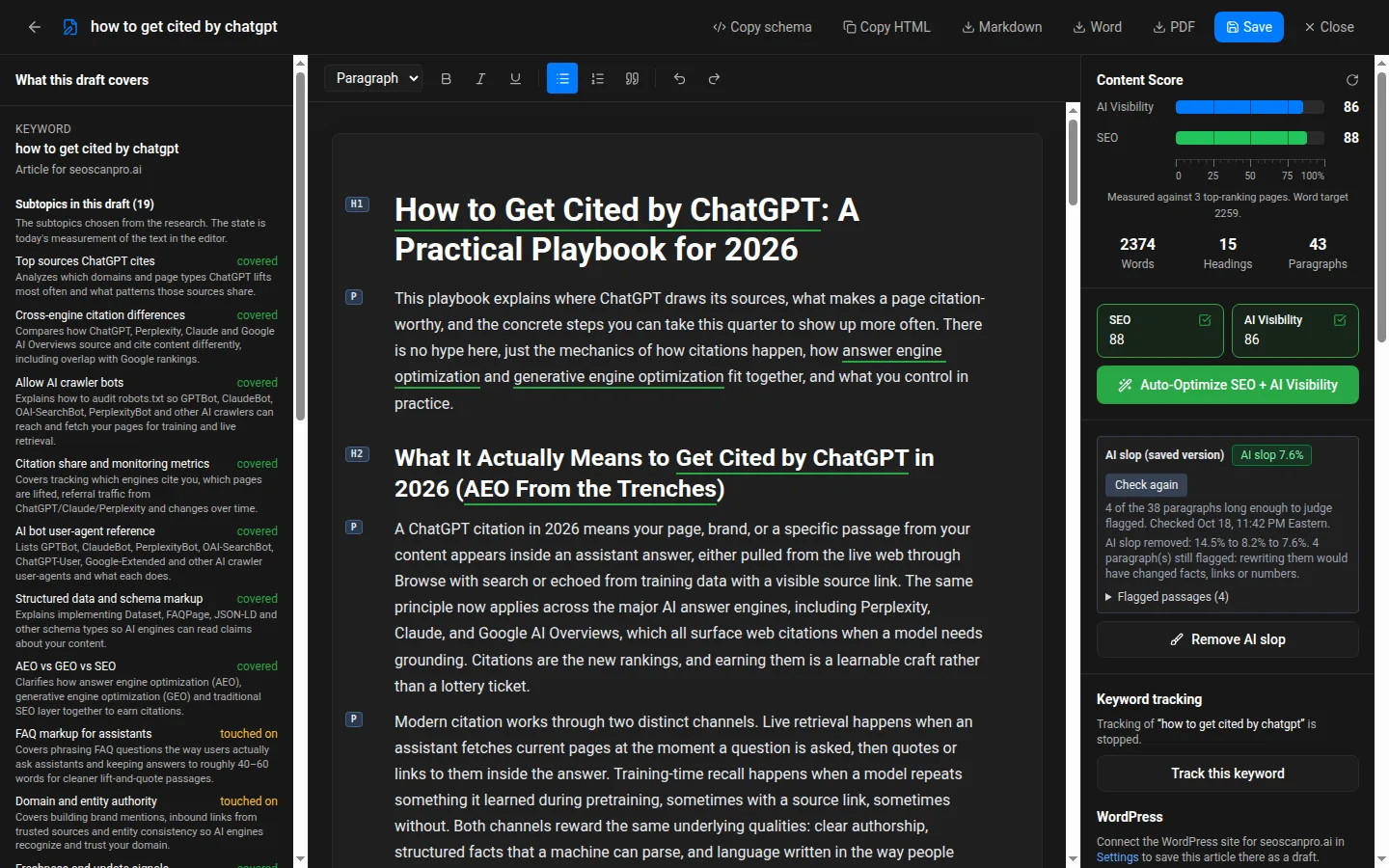
What every draft comes with
One editor that takes a keyword to a finished, scored article for your site.
The research, done for you
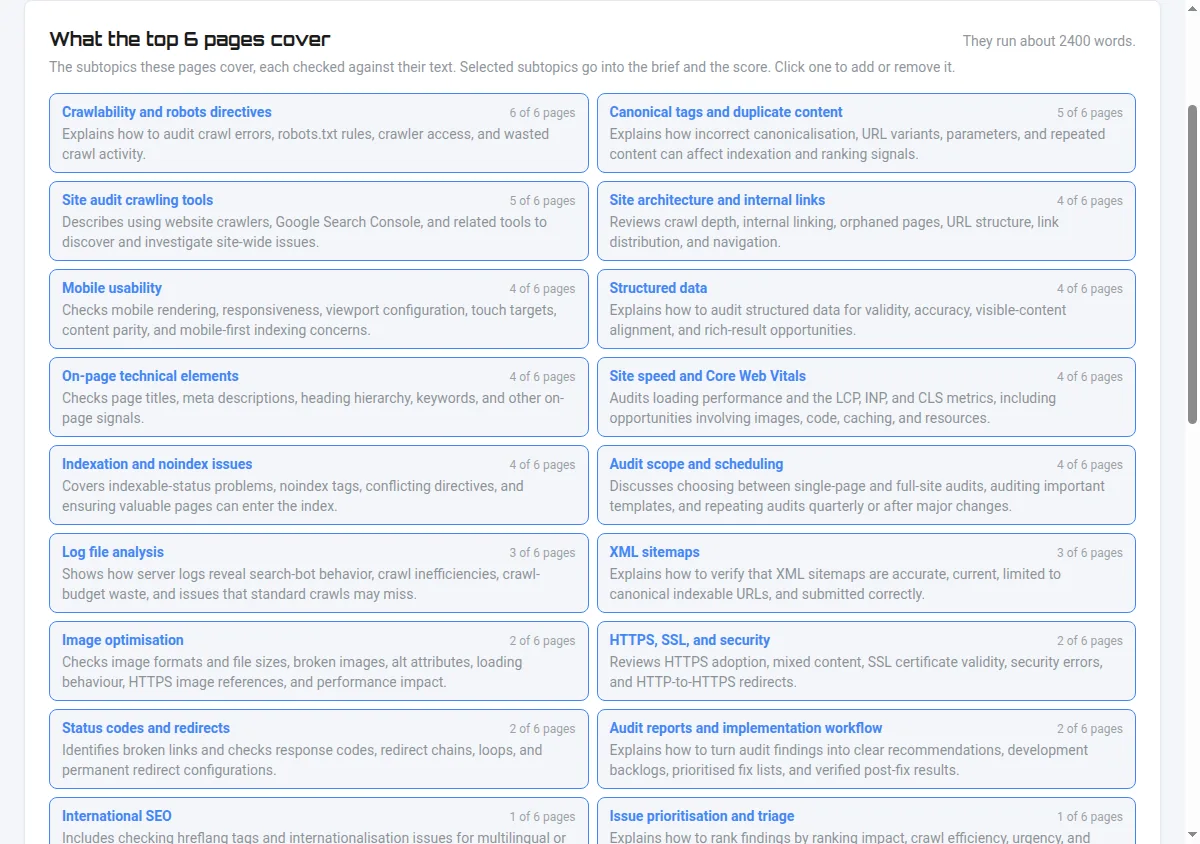
Type a keyword. The Content Writer reads each page that ranks for it and lists the subtopics they cover, with how many of those pages cover each one. You keep the ones you want.
Two scores on every draft
An SEO score and an AI Visibility score, both measured against the top-ranking pages for your keyword. They update as you edit, and Auto-Optimize works on both in one click.
Links to your own live pages
Internal links point at real pages from your sitemap. Each one is checked before it is linked, so a draft never sends a reader to a page that is gone.
Ready for wherever it is going
Copy the HTML, download Markdown, Word or PDF, or send it to your WordPress site as a draft. The business schema for the page is one click away.
Start From What Already Ranks
Research reads each page that ranks for your keyword. It can take up to two minutes.
Each subtopic shows how many of the top pages cover it. You see what searchers expect to find before you write a line, and how long the pages you are up against run.
Pick the subtopics to keep, the page type and the length, from 300 to 3,000 words. The draft is written from your choices.
- Article
- Service page
- Landing page
- Location page
- Comparison page
- Glossary entry
Edit With the Score in Front of You
Every draft opens in a full editor. The document sits in the middle. What it was written from sits on the left. The scores sit on the right and move as you work.
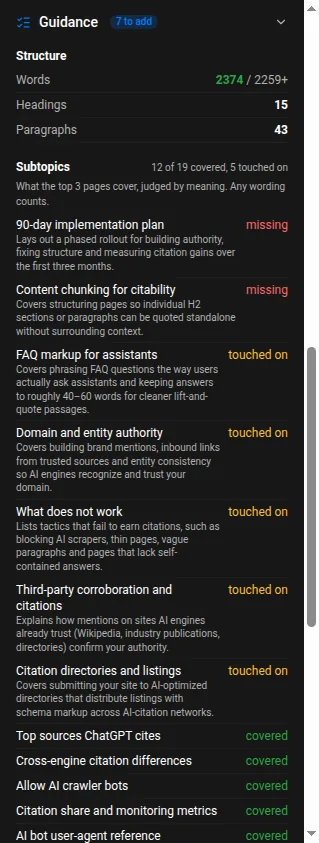
Guidance lists every subtopic the top pages cover and marks it covered, touched on or missing. Coverage is judged by meaning, so any wording counts. Word count, headings and paragraphs are measured against the pages you are competing with.
Reads Like a Person Wrote It
The Humanizer runs on every document.
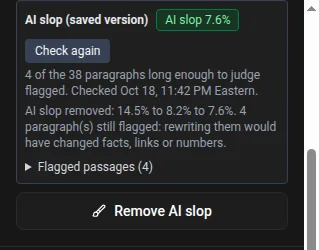
The AI slop check then reads every paragraph long enough to judge and flags the ones that read as machine-written, with the reason for each. Remove AI slop rewrites the flagged passages. A passage is left as it is when rewriting it would change a fact, a link or a number.
Rated Against Google's Quality Guidelines
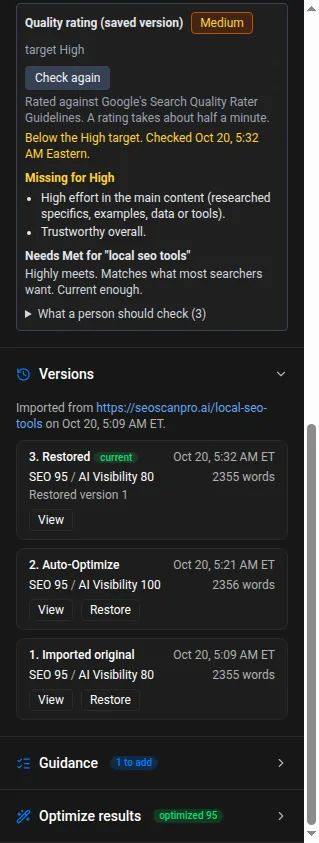
Each draft is rated against Google's Search Quality Rater Guidelines. A rating takes about half a minute.
You see the rating, what is holding it back, what is missing for a High rating, and how well the page meets the searcher's need. Anything a person should verify comes with the searches to check it.
Refresh the Articles You Already Have
Paste the address of an article already published on your site. It opens in the editor with its SEO, AI Visibility, AI slop and quality checks run.
Every change is kept as a version with its scores. View any earlier version and restore it in one click. Your published page is not changed.

No Near Copies of Your Own Pages
Google treats near duplicate pages as scaled content, and that can hold back the whole site. Pages that differ only by a town name are a common example.
Each draft is compared with the other pages you wrote for the same site. A draft too close to one of them is held back, with export turned off, until you change the angle or combine the two. A smaller overlap is flagged so you can read it before you publish.
One keyword on one site gets one draft. Asking for it again opens the draft you already have.
From Draft to Your Website
Send the article to your WordPress site as a draft. It is never published from here. Sending it again updates the same draft, and a post that is already live is never touched.
Connect the site once in Settings with a WordPress application password. It must be one of the websites on your account.
- Publish to WordPress as a draft
- Copy HTML
- Download Markdown, Word or PDF
- Copy the business schema for the page
See Whether the New Article Ranks
When a draft is finished, its keyword goes into Rank Tracker for that site, using one keyword from your plan.
The editor shows the Google position recorded for the keyword and the page that ranks, so you can see whether the new article is the page Google chose. Positions are checked once a day. Stop tracking in one click.
Documents on Every Plan
Every plan includes the Content Writer, the free one too. A document is a new draft or a refreshed article. The allowance resets on the 1st of each month.
- Free: 2 documents a month
- Starter: 40 documents a month
- Basic: 120 documents a month
- Growth: 360 documents a month
- Pro: 600 documents a month
- Agency: 1,000 documents a month, and each Agency step adds 250
Content Writer questions
Does the Content Writer publish to my website?
No. It sends the article to your WordPress site as a draft when you ask it to, and a post that is already live is never changed. You can also copy the HTML or download Markdown, Word or PDF and publish it yourself.
What counts as a document?
A new draft or a refreshed article. Your plan sets how many you can write each month, and the allowance resets on the 1st. See Plans and Pricing.
Can I refresh an article I have already published?
Yes. Paste its address and it opens in the editor with its scores and checks. Every change is kept as a version you can restore, and your published page is not changed.
The rest of the toolset
Write Your Next Page Against the Pages It Has to Beat
Every paid plan starts with a 7 day free trial, which runs at the Growth plan limits, except keyword tracking, which is capped at 50 keywords. No card needed to start. Growth includes 360 documents a month.
Start 7 Day Free Trial